Windows 11 카메라 사용 제한 완화: 멀티 카메라 모드 도입
IT之家에 따르면, IT 전문 매체 Windows Latest가 5월 30일 보도한 내용에 의하면, Microsoft는 Windows 11의 카메라 사용 제한을 완화하여 두 개 이상의 애플리케이션이 동시에 카메라를 호출할 수 있도록 기능을 개선했습니다.
기존 문제점
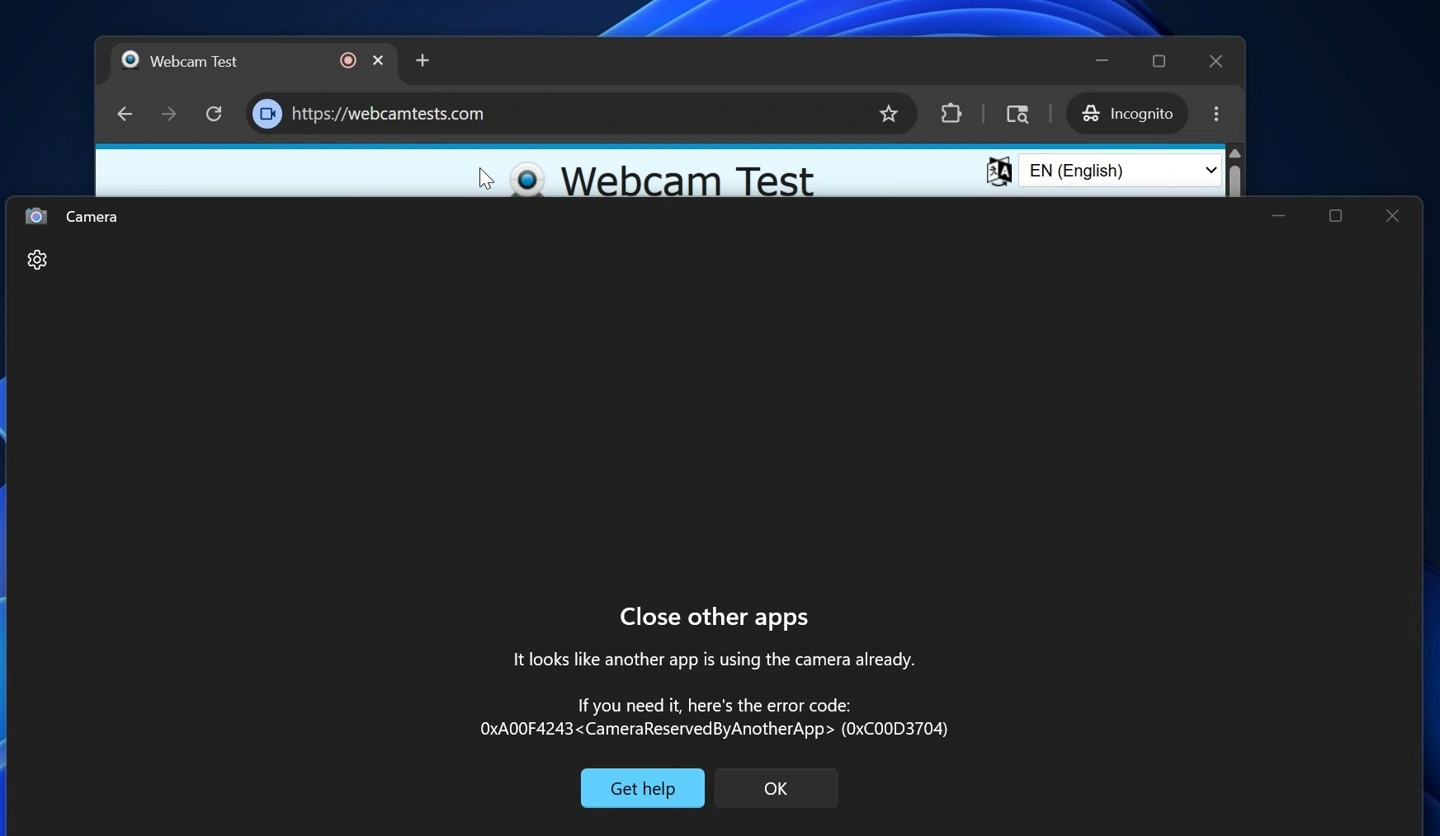
현재 Windows 11 시스템에서는 사용자가 Microsoft Teams에서 회의를 진행하며 카메라를 점유하고 있는 경우, OBS와 같은 다른 애플리케이션을 사용하여 화면 녹화를 할 수 없었습니다. 이 경우 장치를 인식하지 못한다는 오류 코드(0xC00D3704)가 발생했습니다.
멀티 카메라 모드 도입 및 사용 방법
사용자가 Windows 11의 선택적 업데이트 KB5089573 (Build 26200.8524)을 설치한 후, Microsoft는 화상 회의 중 화면 녹화가 동시에 불가능했던 불편함을 해소하기 위해 '멀티 카메라 모드'를 도입했습니다.
이 기능을 사용하려면 수동으로 설정을 변경해야 합니다:
- 설정 앱을 열고 "블루투스 및 장치 > 카메라"로 이동합니다.
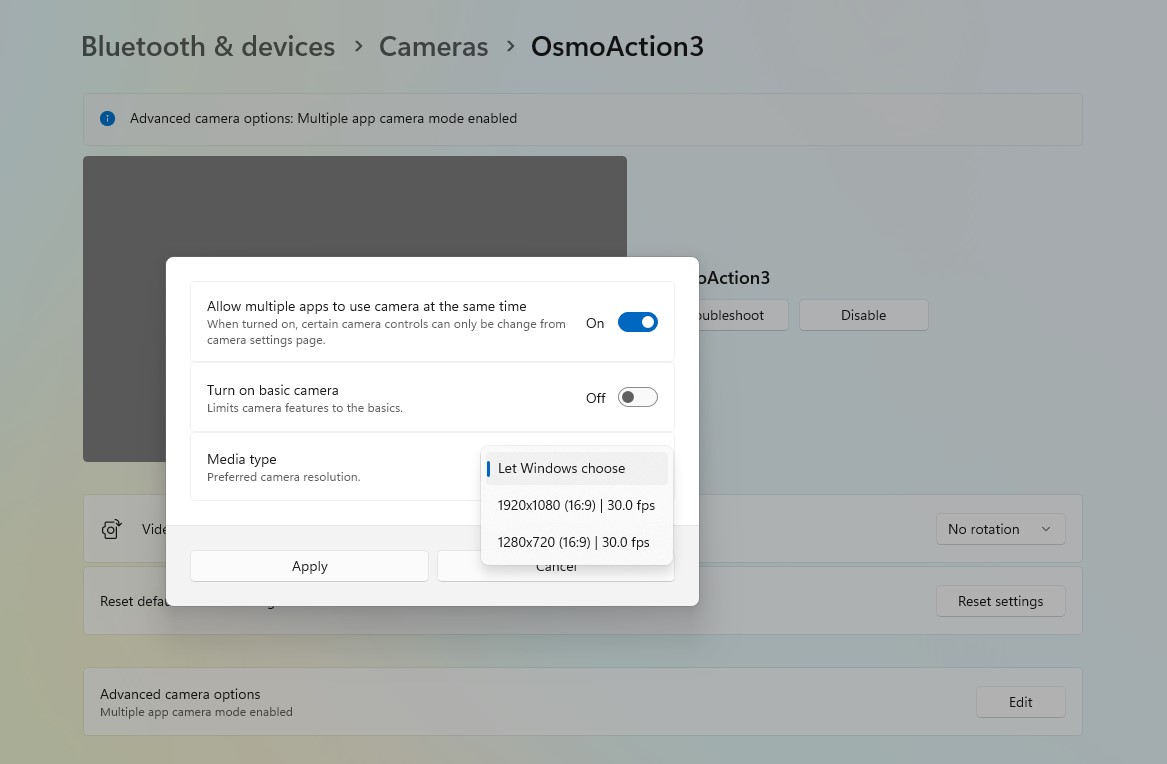
- 사용할 카메라를 선택한 후, 고급 설정까지 스크롤하여 "편집"을 클릭합니다.
- "여러 애플리케이션이 카메라 사용 허용" 옵션을 활성화하면 됩니다.
이 설정을 통해 화상 회의와 화면 녹화를 동시에 병렬로 실행할 수 있게 되었습니다.
카메라 문제 진단 기능 개선
이번 선택적 업데이트에서는 카메라 관련 오류 진단 기능도 개선되었습니다. 새로운 "Basic Camera" 기능을 활성화하면 시스템이 Microsoft 기본 드라이버로 돌아가 카메라를 구동합니다.
이를 통해 사용자는 다음과 같이 문제를 초기 진단할 수 있습니다:
- 만약 이 상태에서 카메라가 정상적으로 작동한다면, 문제는 OEM(Original Equipment Manufacturer) 드라이버에 있음을 의미합니다.
- 여전히 사용할 수 없다면, 하드웨어 자체의 고장일 가능성이 높습니다.
이러한 개선점 덕분에 사용자는 드라이버를 재설치할 필요 없이 문제의 근본 원인을 빠르고 간편하게 파악할 수 있습니다.
총평
이번 Windows 11 업데이트는 화상 회의와 콘텐츠 제작 등 현대적인 작업 환경에서 발생하는 카메라 사용 제약을 해소하는 데 중점을 두었습니다. '멀티 카메라 모드' 도입은 여러 애플리케이션 간의 자원 충돌 문제를 해결하여 사용자 편의성을 크게 높였습니다.
또한, 기본적인 진단 기능을 강화함으로써 소프트웨어적 문제와 하드웨어적 문제를 명확히 분리할 수 있게 되어 시스템 안정성과 유지보수 측면에서도 큰 개선을 가져왔습니다.
Windows 11 支持多应用同时调用摄像头
微软在最新的 Windows 11 更新中放宽了系统限制,允许多个应用程序同时调用摄像头。此举旨在解决用户在进行视频会议(如使用 Microsoft Teams)时,无法同时使用其他软件(如 OBS)录制屏幕并报错 0xC00D3704 的痛点。
更新版本与功能详情
该功能包含在 Windows 11 的可选更新中,具体信息如下:
- 更新编号:KB5089573
- 版本号:Build 26200.8524
- 核心功能:引入“多摄像头模式”,允许视频会议与屏幕录制并行运行。
用户可以通过以下路径手动开启该功能:设置 > 蓝牙和设备 > 摄像头 > 选择对应摄像头 > 高级设置 > 编辑 > 开启“让多个应用使用你的摄像头”。
增强的故障诊断工具
在本次更新中,微软还改进了摄像头的故障诊断功能。新增的“Basic Camera”模式允许系统回退至基础驱动运行:
- 若开启后摄像头正常工作,则说明问题源于 OEM 驱动。
- 若仍无法使用,则可能属于硬件故障。
此功能旨在帮助用户在无需重装驱动的情况下快速定位问题的根源。
总结
微软通过 KB5089573 更新为 Windows 11 增加了多应用同时调用摄像头的支持,解决了视频会议与录屏软件冲突的问题。此外,新增的“Basic Camera”功能能帮助用户更快速地判断摄像头故障是源于驱动程序还是硬件本身。
Windows 11のカメラ使用制限緩和:マルチカメラモードの導入
IT之家の報道(Windows Latestによる5月30日の報じた内容)によると、MicrosoftはWindows 11におけるカメラの使用制限を緩和し、2つ以上のアプリケーションが同時にカメラを呼び出せるよう機能を改善しました。
従来の問題点
これまでのWindows 11システムでは、ユーザーがMicrosoft Teamsで会議を行いカメラを使用している間、OBSなどの他のアプリケーションを使用して画面録画を行うことができませんでした。この場合、デバイスを認識できないというエラーコード(0xC00D3704)が発生していました。
マルチカメラモードの導入と設定方法
Microsoftは、選択的更新プログラムKB5089573(Build 26200.8524)をインストールしたユーザー向けに、ビデオ会議中に画面録画が同時に行えない不便さを解消するための「マルチカメラモード」を導入しました。
この機能を使用するには、手動で設定を変更する必要があります:
- 設定アプリを開き、「Bluetoothとデバイス > カメラ」に移動します。
- 使用するカメラを選択し、詳細設定までスクロールして「編集」をクリックします。
- 「複数のアプリケーションによるカメラの使用を許可」のオプションを有効にします。
この設定により、ビデオ会議と画面録画を並行して同時に実行できるようになります。
カメラ問題の診断機能の改善
今回の選択的更新では、カメラ関連のエラー診断機能も改善されました。新しい「Basic Camera」機能を有効にすると、システムはMicrosoft標準ドライバに戻ってカメラを動作させます。
これにより、ユーザーは以下のように初期診断を行うことができます:
- この状態でカメラが正常に動作する場合、問題はOEM(Original Equipment Manufacturer)ドライバにあることを意味します。
- 依然として使用できない場合は、ハードウェア自体の故障の可能性が高いです。
これらの改善により、ユーザーはドライバを再インストールすることなく、問題の根本原因を迅速かつ簡単に特定できるようになります。
まとめ
今回のWindows 11アップデートでは、ビデオ会議やコンテンツ制作といった現代的な作業環境におけるカメラ使用の制約を解消することに重点が置かれています。「マルチカメラモード」の導入により、複数のアプリケーション間でのリソース競合問題が解決され、利便性が大幅に向上しました。また、診断機能の強化によってソフトウェアとハードウェアの問題を明確に切り分けられるようになり、システムの安定性とメンテナンス性の両面で大きな改善が見込まれます。
Windows 11 Camera Restrictions Eased: Multi-Camera Mode Introduced
According to IT House and a report from tech media Windows Latest on May 30, Microsoft has improved Windows 11 by relaxing camera usage restrictions, allowing multiple applications to access the camera simultaneously.
Existing Issues
Previously in Windows 11, if a user was participating in a meeting via Microsoft Teams and the camera was occupied, other applications such as OBS would be unable to use the camera for screen recording. In these instances, an error code (0xC00D3704) would appear, indicating that the device could not be recognized.
Introduction of Multi-Camera Mode and How to Use
Microsoft introduced "Multi-Camera Mode" in optional update KB5089573 (Build 26200.8524) to resolve the inconvenience where screen recording was impossible during video calls.
To use this feature, users must manually adjust the settings:
- Open the Settings app and navigate to "Bluetooth & devices > Camera."
- Select the camera you intend to use, scroll down to advanced settings, and click "Edit."
- Enable the option "Allow multiple applications to use the camera."
With this setting enabled, users can now run video conferencing and screen recording in parallel.
Improved Camera Diagnostic Features
This optional update also improves diagnostic features for camera-related errors. By enabling the new "Basic Camera" feature, the system will revert to using Microsoft's default drivers to operate the camera.
This allows users to perform initial diagnostics as follows:
- If the camera functions normally in this state, it indicates that the problem lies with the OEM (Original Equipment Manufacturer) driver.
- If the camera still cannot be used, there is a high probability of hardware failure.
These improvements allow users to quickly and easily identify the root cause of an issue without the need to reinstall drivers.
Overall Review
This Windows 11 update focuses on removing camera usage constraints in modern work environments, such as video conferencing and content creation. The introduction of "Multi-Camera Mode" significantly improves user convenience by resolving resource conflicts between multiple applications.
Furthermore, the enhancement of basic diagnostic features allows for a clear distinction between software and hardware issues, leading to significant improvements in system stability and maintenance.
Summary
Microsoft has introduced "Multi-Camera Mode" in a Windows 11 update to allow multiple apps like Teams and OBS to access the camera simultaneously. The update also includes a "Basic Camera" feature that helps users quickly determine if camera issues are caused by faulty OEM drivers or hardware malfunctions.
Windows 11 支持多应用同时调用摄像头
微软在最新的 Windows 11 更新中放宽了系统限制,允许多个应用程序同时调用摄像头。此举旨在解决用户在进行 Microsoft Teams 视频会议时,无法使用 OBS 等软件同步录制屏幕的问题(此前会导致报错代码 0xC00D3704)。
更新版本与功能配置
该功能包含在 Windows 11 的可选更新 KB5089573(Build 26200.8524)中。用户可以通过以下路径手动开启:
- 进入“设置”应用;
- 导航至“蓝牙和设备” > “摄像头”;
- 选择对应的摄像头设备,滚动至“高级设置”;
- 点击“编辑”,勾选“让多个应用使用你的摄像头”。
故障诊断与基础驱动模式
在本次更新中,微软还优化了摄像头的故障诊断功能。新增的“Basic Camera”功能允许系统回退至微软基础驱动运行:
- 若开启后摄像头正常工作,说明问题源于 OEM 驱动;
- 若仍无法使用,则可能为硬件故障。
此功能旨在帮助用户在无需重装驱动的情况下快速定位问题根源。
总结
微软通过 KB5089573 更新为 Windows 11 引入了多摄像头模式,解决了视频会议与录制软件冲突的痛点。同时,新增的“Basic Camera”功能显著提升了用户对驱动故障与硬件损坏的辨别能力。
Windows 11でカメラの制限を緩和:マルチカメラモードを導入
IT専門メディア「Windows Latest」の報道(IT之家経由)によると、MicrosoftはWindows 11のカメラ使用制限を緩和し、2つ以上のアプリケーションが同時にカメラを呼び出せるように機能を改善しました。
従来の問題点
これまでのWindows 11システムでは、ユーザーがMicrosoft Teamsなどで会議を行いカメラを使用している際、OBSなどの他のアプリケーションを使用して画面録画を行うことができませんでした。この場合、デバイスを認識できないというエラーコード(0xC00D3704)が発生していました。
マルチカメラモードの導入と設定方法
Microsoftは、選択的更新プログラム「KB5089573 (Build 26200.8524)」を通じて、ビデオ会議中に画面録画が同時に行えない不便さを解消するための「マルチカメラモード」を導入しました。
この機能を有効にするには、手動で設定を変更する必要があります:
- 設定アプリを開き、「Bluetoothとデバイス > カメラ」に移動します。
- 使用するカメラを選択し、詳細設定までスクロールして「編集」をクリックします。
- 「複数のアプリケーションがカメラを使用することを許可」のオプションを有効にします。
この設定により、ビデオ会議と画面録画を並行して実行できるようになります。
カメラ問題の診断機能の改善
今回の更新では、カメラに関するエラー診断機能も改善されました。新しい「Basic Camera」機能を有効にすると、システムがMicrosoftの基本ドライバに戻ってカメラを動作させます。
これにより、ユーザーは以下のように初期診断を行うことができます:
- この状態でカメラが正常に動作する場合、問題はOEM(Original Equipment Manufacturer)ドライバにあることを意味します。
- 依然として使用できない場合は、ハードウェア自体の故障の可能性が高いです。
これらの改善により、ユーザーはドライバを再インストールすることなく、問題の根本原因を迅速かつ簡単に特定できるようになります。
まとめ
Windows 11の最新アップデートにより、ビデオ会議とコンテンツ制作を同時に行う際のカメラ競合問題が解消され、マルチカメラモードが導入されました。また、診断機能の強化により、トラブル発生時にソフトウェア(ドライバ)の問題かハードウェアの故障かを迅速に判別できるようになります。
Windows 11 Relaxes Camera Restrictions: Multi-Camera Mode Introduced
According to reports from Windows Latest and other IT news outlets, Microsoft has updated Windows 11 to relax camera usage restrictions, allowing multiple applications to access the camera simultaneously.
Previous Limitations
Previously, if a user was conducting a meeting on Microsoft Teams, the application would occupy the camera, making it impossible for other software like OBS to record the screen. In such cases, users were met with error code 0xC00D3704, indicating that the device could not be recognized by the second application.
Multi-Camera Mode and Activation
With the release of optional update KB5089573 (Build 26200.8524), Microsoft introduced "Multi-camera mode" to resolve the inconvenience of being unable to record screens while participating in video conferences.
To enable this feature, users must manually adjust the settings:
- Open the Settings app and navigate to "Bluetooth & devices" > "Cameras."
- Select the camera you wish to use and scroll down to Advanced settings.
- Click "Edit" and toggle on the option "Allow multiple apps to use your camera."
By enabling this setting, users can now run video conferencing and screen recording in parallel.
Improved Camera Diagnostics
This update also improves diagnostic features for camera-related issues. By enabling the new "Basic Camera" feature, the system will revert to using Microsoft's default driver to operate the camera.
Users can use this mode to perform initial troubleshooting as follows:
- If the camera functions correctly in Basic Camera mode, the issue is likely with the OEM (Original Equipment Manufacturer) driver.
- If the camera still fails to function, it is highly probable that there is a hardware failure.
These improvements allow users to quickly and easily identify the root cause of an issue without needing to reinstall drivers unnecessarily.
Summary
Microsoft has introduced "Multi-camera mode" in Windows 11 update KB5089573, allowing multiple apps like Microsoft Teams and OBS to use the camera simultaneously. Additionally, a new "Basic Camera" feature has been added to help users distinguish between faulty OEM drivers and actual hardware failures.
Windows 11 多应用同时调用摄像头功能
微软在 Windows 11 的更新中放宽了对摄像头的限制。此前,当用户在 Microsoft Teams 等应用中占用摄像头时,其他应用(如 OBS)将无法获取画面并报错 0xC00D3704。通过安装可选更新 KB5089573(Build 26200.8524),系统引入了多摄像头模式,支持视频会议与屏幕录制并行运行。
功能开启路径
用户可以通过以下步骤手动开启该功能:
- 进入“设置”应用。
- 导航至“蓝牙和设备” > “摄像头”。
- 选择对应的摄像头,滚动至“高级设置”。
- 点击“编辑”,勾选“让多个应用使用你的摄像头”。
故障诊断与基础驱动支持
在本次更新中,微软还优化了摄像头的故障诊断功能。新增的“Basic Camera”功能允许系统回退到微软的基础驱动运行:
- 若开启“Basic Camera”后摄像头正常工作,则说明问题源于 OEM 驱动。
- 若仍无法使用,则可能属于硬件故障。
总结
微软通过 KB5089573 更新为 Windows 11 增加了多应用同时调用摄像头的支持,解决了视频会议与录屏软件冲突的问题。此外,新增的“Basic Camera”模式能帮助用户快速判断摄像头故障是源于驱动程序还是硬件损坏。
Windows 11のカメラ使用制限を緩和:マルチカメラモードの導入
ITハウスおよび技術系メディア「Windows Latest」の報道(5月30日付)によると、MicrosoftはWindows 11におけるカメラの使用制限を緩和し、2つ以上のアプリケーションが同時にカメラにアクセスできるよう機能を改善しました。
従来の問題点
これまでのWindows 11システムでは、ユーザーがMicrosoft Teamsなどで会議を行いカメラを使用している間、OBSなどの他のアプリケーションを使用して画面録画を行うことができませんでした。この場合、デバイスを認識できないというエラーコード(0xC00D3704)が発生していました。
マルチカメラモードの導入と設定方法
Microsoftは、選択的更新プログラムKB5089573(Build 26200.8524)を通じて、ビデオ会議中に画面録画が同時に行えない不便さを解消するための「マルチカメラモード」を導入しました。
この機能を使用するには、手動で設定を変更する必要があります:
- 設定アプリを開き、「Bluetooth とデバイス > カメラ」に移動します。
- 使用するカメラを選択し、詳細設定までスクロールして「編集」をクリックします。
- 「複数のアプリケーションによるカメラの使用を許可(Allow multiple applications to use the camera)」のオプションを有効にします。
この設定を有効にすることで、ビデオ会議と画面録画を並行して同時に実行できるようになります。
カメラ問題の診断機能の改善
今回の更新では、カメラ関連のエラー診断機能も向上しました。新しく追加された「Basic Camera」機能を有効にすると、システムはMicrosoft標準ドライバを使用してカメラを動作させます。
これにより、ユーザーは以下のように初期診断を行うことが可能になります:
- この状態でカメラが正常に動作する場合、問題の原因はOEM(Original Equipment Manufacturer)ドライバにあることを意味します。
- 依然として使用できない場合は、ハードウェア自体の故障の可能性が高いと判断できます。
これらの改善により、ユーザーはドライバを再インストールする手間を省き、問題の根本原因を迅速かつ簡単に特定できるようになります。
まとめ
今回のWindows 11アップデートにより、ビデオ会議と画面録画の同時実行が可能になり、コンテンツ制作などの現代的なワークフローにおける利便性が向上しました。また、診断機能の強化によって、カメラの不具合がドライバの問題かハードウェアの故障かを迅速に切り分けられるようになり、メンテナンス性が大幅に改善されました。
Windows 11 Relaxed Camera Restrictions: Multi-Camera Mode Introduced
According to reports from IT House and tech media Windows Latest, Microsoft has updated Windows 11 to relax camera usage restrictions. This update allows multiple applications to access the camera simultaneously, improving functionality for users who need to run multiple media-related apps at once.
Addressing Existing Issues
Previously, Windows 11 systems faced limitations where a single application would "lock" the camera. For example, if a user was in a meeting on Microsoft Teams, other applications like OBS would be unable to access the camera for screen recording. In such cases, the system would return error code 0xC00D3704, indicating that the device could not be recognized by the second application.
Multi-Camera Mode and Configuration
Microsoft introduced "Multi-Camera Mode" in optional update KB5089573 (Build 26200.8524) to resolve these conflicts. This feature allows video conferencing and screen recording to run in parallel.
To enable this feature, users must manually adjust the settings:
- Open the Settings app and navigate to "Bluetooth & devices" > "Camera."
- Select the camera you intend to use, scroll down to advanced settings, and click "Edit."
- Enable the option "Allow multiple applications to use the camera."
Once enabled, users can perform tasks like live streaming or recording while simultaneously participating in video calls.
Enhanced Camera Diagnostic Tools
The update also includes improved diagnostic features for troubleshooting. By enabling the new "Basic Camera" mode, the system will revert to using Microsoft's default drivers to operate the camera.
This allows users to perform initial diagnostics as follows:
- If the camera functions correctly in Basic Camera mode, the issue is identified as a problem with the OEM (Original Equipment Manufacturer) driver.
- If the camera still fails to function in this mode, it indicates a high probability of hardware failure.
These improvements allow users to quickly identify whether a problem is software-based or hardware-related without needing to reinstall drivers immediately.
Summary
Windows 11 now supports "Multi-Camera Mode" via update KB5089573, allowing multiple applications like Microsoft Teams and OBS to access the camera simultaneously. Additionally, a new "Basic Camera" diagnostic feature helps users quickly determine if camera issues are caused by faulty OEM drivers or actual hardware failures.